

 Ethan Parker
March 23, 2026
Ethan Parker
March 23, 2026
10 Common Technical SEO Issues Killing Your Rankings (And How to Fix Them)
Technical seo issues lurk quietly in most websites. They sabotage rankings without fanfare. One overlooked server error or sloppy redirect…
Technical seo issues lurk quietly in most websites. They sabotage rankings without fanfare. One overlooked server error or sloppy redirect chain can erase months of effort overnight. We think many owners ignore this side completely until the damage shows up in sharp drops.
Picture your site as a massive warehouse instead of some shiny storefront. Content fills the shelves with goods people want. Backlinks drive crowds through the doors. Technical seo issues? Those represent cracked foundations, flickering lights, jammed doors, leaky roofs. Everything else crumbles if the structure fails first. Googlebot arrives like a delivery truck. It needs clear paths. Fast access. Accurate maps. Anything less and your inventory sits unseen forever.
According to our data small businesses lose the most from these silent killers. Maybe you built killer pages. Maybe your products beat competitors hands down. None of it matters when bots get blocked or pages load like molasses in January. Honestly fixing the infrastructure first changes everything quicker than fresh content ever could.
What is Technical SEO
Technical SEO targets website and server modifications within your direct control. These changes impact crawlability, indexation, and search rankings directly. Content discoverability depends on this foundation. AI search engines still require crawlable, structured, fast sites to surface information accurately. Page titles matter. So do title tags, HTTP headers, XML sitemaps, and 301 redirects. Metadata completes the picture.
Analytics sits outside technical SEO. Keyword research exists separately. Backlink development and social strategies occupy different disciplines. The concept of search engine optimization is based on technical SEO. Improving the search experience begins here.
How to Identify Technical SEO Issues
Before we fix things, we have to find them. You wouldn’t renovate a house without inspecting the foundation first, right? The same logic applies here. You need to run an audit.
We rely on a few specific tools. Google Search Console is your first stop. It is free and it tells you exactly what Google sees. Are there crawl errors? Is your sitemap working? The Coverage report is pure gold for spotting indexation problems.
Then you need a crawler. Screaming Frog and Sitebulb function as site spiders, crawling every accessible URL just as Googlebot would. They catalog each page, header element, meta tag, and hyperlink across your domain. The output reveals technical SEO issues with brutal clarity. Broken links surface immediately. Redirect chains expose themselves. Duplicate titles become impossible to ignore.
10 Common Technical SEO Issues
Here are the ten most frequent offenders we find when auditing sites, particularly for small and medium businesses.
1. No HTTPS Security
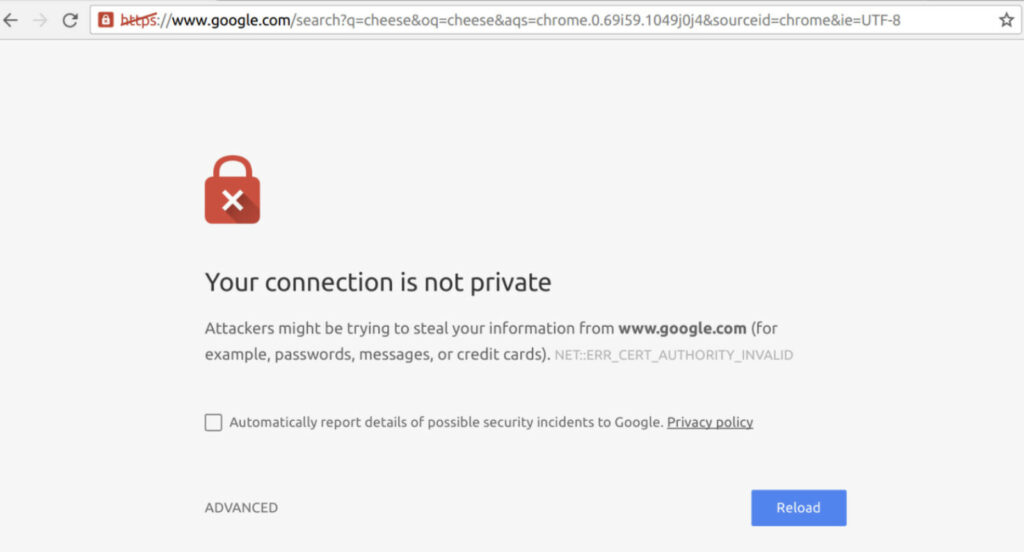
No HTTPS security should be table stakes , but we still see it. A website without an SSL certificate is marked “Not Secure” in browsers. Google has used HTTPS as a ranking signal for years. If your site is still HTTP, you are starting the race with a handicap.
How to Check
To spot no HTTPS security fast, start by staring straight at your browser’s address bar on any page of the site. If it screams http:// instead of https://, or worse, flashes a glaring “Not Secure” warning right next to the URL, you’ve got the problem staring back at you. We think most people catch this within seconds yet still let it slide for months.
Open your main homepage, any product page, even a random blog post. Click that little padlock icon if one exists. Nothing there, or a crossed-out symbol? Red flag. Fire up Screaming Frog next, crawl the entire domain, then filter strictly for URLs beginning with http. According to our data this pulls up every insecure page in one brutal list. Run the same check on mobile. Google marks non-HTTPS sites harshly these days, especially when users enter anything sensitive.
How to Fix It
Purchase and install an SSL certificate. Many hosting companies include this for free via Let’s Encrypt. Once installed, you must implement 301 redirects from every single HTTP URL to its HTTPS version. Do not just make the site available on both; force the redirect. Also, go through your content and update any internal links pointing to the old HTTP addresses.
2. Site Isn’t Indexed Correctly
You can build it, but they won’t come if Google doesn’t put you in the phone book. Indexing is the process of Google storing your page in its massive database. If your pages aren’t indexed, they literally cannot rank. This is one of the most frustrating technical seo issues because you might think your new page is live, but to Google, it’s invisible .
How to Check
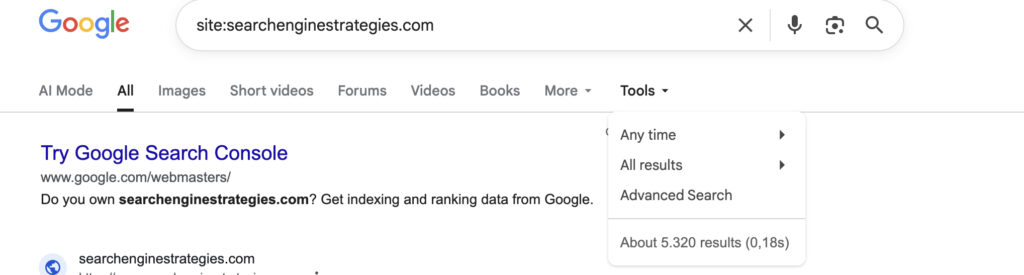
To check if your site isn’t indexed correctly, jump into Google Search Console and scan the Pages report under Indexing. It lists every submitted URL, showing which ones landed in the index and which got excluded with reasons like “Crawled – currently not indexed” or “Discovered – currently not indexed.” Use the URL Inspection tool on suspect pages for live fetch details, crawl status, and any noindex or robots.txt blocks.
Type site:yourdomain.com straight into Google. Few or missing results mean trouble. We think this combo catches most indexing disasters fast. Run it often.
How to Fix It
Technical seo issues hit hardest when your site isn’t indexed correctly. Start by removing every noindex tag or meta robots directive blocking pages you want visible. Head to your CMS or page source, hunt for then delete it instantly. Strengthen internal linking so Googlebot finds fresh or orphaned URLs faster through relevant anchors from high-authority pages. For pages stuck in “Discovered – currently not indexed” status submit them manually via Google Search Console’s URL Inspection tool and request indexing. Thin content gets you ignored. Beef it up with unique value, depth, authority signals. Duplicate pages confuse bots. Set proper rel=canonical tags pointing to the preferred version.
3. No XML Sitemaps
An XML sitemap is a roadmap you give to Google. It lists all the important pages on your website that you want search engines to crawl. Without it, Google has to discover all your content through links alone. For a new site, or a site with a deep architecture, this can take forever. It is a simple file, but its absence is a major oversight.
How to Check
Technical seo issues surge when no XML sitemaps exist to steer crawlers efficiently. Punch yourdomain.com/sitemap.xml directly into any browser address bar. Nothing loads except a stark 404 error? That signals a complete absence most times.
Switch immediately to yourdomain.com/sitemap_index.xml for sites splitting maps across sections. Still blank or broken? Slip over to Google Search Console, hunt down the Sitemaps tab, scan for submitted files plus any glaring error alerts. We think these dead-simple probes expose the gap in seconds flat. Run them relentlessly. One missing roadmap starves deep pages of visibility forever.
How to Fix It
Technical seo issues multiply fast without a clean XML sitemap feeding crawlers the right paths. WordPress sites running Yoast or RankMath spit out sitemaps automatically most times. Locate that URL then shove it straight into Google Search Console for submission. Custom-built platforms demand different tactics entirely. Grab a developer there. Force them to whip up a dynamic sitemap tailored exactly to your structure. Keep it razor-focused. Strip out junk like endless filtered variations, ancient blog tag pages, parameter-ridden duplicates.
4. Missing or Incorrect Robots.txt
The robots.txt file tells search engine crawlers where they can and cannot go on your site. It is a powerful tool. But with great power comes great responsibility. A single misplaced line of code can block Google from your entire website. We have seen staging sites accidentally block the live site, killing traffic overnight.
How to Check
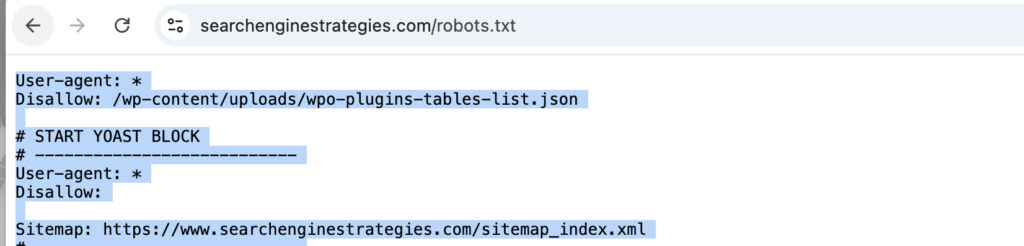
Technical seo issues ignite instantly from a botched robots.txt file blocking everything in sight. Hammer yourdomain.com/robots.txt into any browser bar right now. A proper file should load immediately. Hunt for the brutal Disallow: / directive sitting there alone. Spot that single line? You just slammed the door on Googlebot and every other crawler trying to enter your domain.
Flip over to Google Search Console next. Dive into the robots.txt Tester or error logs section. Red flags or parsing failures pop up there if syntax went haywire. We think these blunt checks reveal catastrophic blocks in under thirty seconds. One stray slash kills traffic dead.
How to Fix It
If the file is blocking important pages, you need to edit it. The syntax is specific. For example, to allow all bots, you would have:
User-agent: *

Disallow:
If you have nothing to hide, this is often the safest bet. Also, ensure your sitemap URL is listed in the robots.txt file to help crawlers find it.
5. Meta Robots NOINDEX Set
Sometimes the problem isn’t in a separate file; it is right on the page itself. A meta robots tag is a piece of code in the HTML <head> of a page that gives search engines specific instructions. If that tag includes noindex, you are explicitly telling Google, “Do not put this page in your index.” We see this often on pages that were temporarily hidden during site development and then forgotten.
How to Check
To catch noindex tags sneaking around and blocking pages from search results, grab a crawler like Sitebulb or Screaming Frog and kick off a complete site audit. Drill straight into the Meta Robots field or Indexability overview once the crawl finishes. Bright red flags jump out wherever a noindex instruction sits quietly in the HTML head. For fast manual verification on any page, right-click, pick View Page Source, then smash Ctrl+F and search for “noindex”. We think slamming both methods together snags leftover staging tags or careless mistakes in seconds. One stray directive can lock valuable content out of Google forever.
How to Fix It
Making a page public requires you to scrub that noindex tag. Most SEO plugins plant a simple checkbox directly on the edit screen, something like “Allow search engines to show this page?” and you need it verified as checked. Hardcoded situations are different. A developer must surgically extract the content=”noindex” directive from the code. One overlooked tag blocks your entire visibility.
6. Slow Page Speed
We live in a world of instant gratification. If your site takes more than three seconds to load, you have already lost a massive chunk of your potential customers. Google knows this, which is why page speed is a direct ranking factor, especially on mobile. It is not just about user experience; it is about physics. A slow site bleeds money.
How to Check
Slow page speed kills conversions before visitors even notice your content. Paste your URL straight into Google’s PageSpeed Insights tool and watch it spit out separate scores for mobile plus desktop versions. The real gold hides in the detailed diagnostics section which pinpoints every script, image, render-blocking resource, or server lag dragging your load times higher.
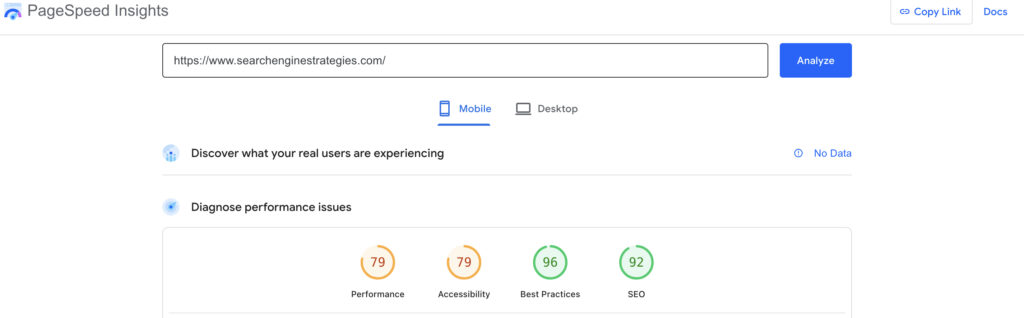
Scroll down further and scrutinize the Core Web Vitals breakdown. Largest Contentful Paint clocks how long the main content takes to appear. Interaction to Next Paint measures delay after user clicks. Cumulative Layout Shift tracks annoying jumps as elements shift around unexpectedly. We think staring at these three metrics reveals exactly where your site bleeds performance.
How to Fix It
Page speed drags like an anchor until you attack the biggest culprits head-on. Begin with images since they devour bandwidth more than anything else. Crush their file sizes through aggressive compression, swap outdated JPEGs and bloated PNGs for sleek WebP versions that slash weight without visible quality loss. Enable browser caching so repeat visitors grab static assets from their local storage instead of your server every single time.
Minify CSS files plus JavaScript ruthlessly, stripping whitespace, comments, shortening variables until nothing superfluous remains. Slow servers choke even optimized pages. Upgrade hosting plans for snappier response times or bolt on a CDN to sling content from edge locations closer to users worldwide.
7. Multiple Versions of the Homepage
This is a classic. Can users access your homepage via http://example.com, http://www.example.com, https://example.com, and https://www.example.com? If all four resolve and show a page, you have split your link equity four ways. Some backlinks might point to the www version, some to the non-www, diluting the power of those links. Search engines see these as potentially separate pages.
How to Check
Type all four variations into your browser. See where you end up. Do they all redirect to a single, preferred version? Or do they all stay as separate URLs? A crawler will also flag this as a “duplicate page” issue if you don’t have proper redirects in place.
How to Fix It
Choose your preferred domain (we usually prefer https://www. or https:// without www). Then, set up 301 redirects so that all other versions point to this one. This is usually done in your .htaccess file (on Apache servers) or your server configuration file. This consolidates all your link equity onto one single, authoritative address.
8. Incorrect Rel=Canonical
The rel=canonical tag is a hint you give to search engines. It tells them, “Even though this page has its own URL, the master copy is actually over here.” It is used to solve duplicate content problems. But if you implement it wrong, you can accidentally tell Google to ignore your most important pages. We see this often on e-commerce sites with faceted navigation.
How to Check
Deploy a crawler to systematically audit every page implementing a canonical tag. You must verify each tag references the correct, authoritative URL version. Pages sometimes canonicalize to themselves. A frequent misconfiguration occurs when a page should point to its parent category but instead self-references. More severe errors involve cross-domain canonicalization, directing signals to an entirely separate domain and diluting your link equity.
How to Fix It
Review your SEO plugin or CMS settings. Ensure that for paginated pages (like domain.com/category/page/2/), the canonical points back to the main category page if that is your intention. For product variants with different parameters, ensure they all canonicalize to the main product URL. This is a delicate fix; if you are unsure, consult a developer.
9. Duplicate Content
“Duplicate content” doesn’t mean Google will penalize you. It just means they have to choose which version to show. And they might choose the wrong one. This happens when the same content is accessible via multiple URLs (like printer-friendly versions, session IDs in URLs, or HTTP vs HTTPS versions). It dilutes your ranking signals.
How to Check
Employing a crawler becomes non-negotiable for this specific audit. Screaming Frog’s “Duplicate Content” analysis automatically clusters pages exhibiting identical textual composition. You should also extract a distinctive sentence from one blog post. Paste it into Google with quotation marks. If search results return multiple URLs from your own domain, your site suffers from duplicate content competing against itself.
How to Fix It
Technical duplicates triggered by URL parameters require the rel=canonical tag for proper consolidation. When product descriptions run virtually identical, invest in rewriting each one. Google’s algorithms reward distinct value. Printer-friendly page versions present a dilemma; you might noindex them or delete those assets completely. Consolidation through 301 redirects, merging similar pages into single authoritative destinations, frequently delivers substantial SEO gains.
10. Mobile Device Optimization
Google uses mobile-first indexing. That means Google predominantly uses the mobile version of your content for indexing and ranking. If your mobile site is stripped down, missing content, or has a terrible user experience, your rankings will suffer—even for people searching on desktop. This is non-negotiable.
How to Check
Google’s Mobile-Friendly Test tool provides immediate visualization of your page through Googlebot’s perspective. It flags specific usability failures. Text may render too small for comfortable reading. Clickable elements might cluster with inadequate spacing.
The viewport configuration could be missing entirely. Cross-reference these findings against your Google Search Console account, which catalogs mobile usability errors detected during Google’s regular crawling activities.
How to Fix It
Responsive design frameworks offer the cleanest path to mobile compatibility. Your desktop content and structured data must transfer completely to smaller screens. Intrusive pop-ups that obscure main content on compact displays harm both usability and rankings.
Font sizes demand legibility without forced zooming. Our analysts consistently observe that resolving mobile issues generates the most rapid traffic recoveries across all technical SEO fixes.
How to Prioritise Technical SEO Issues
Okay, you have run your technical SEO audit. You have a list of 50 problems. Now what? You cannot fix everything at once. You need a plan. Prioritization is the difference between spinning your wheels and actually moving the needle.
We prioritize based on impact versus effort. Ask yourself: “Will fixing this get more pages indexed?” and “How hard is this to implement?”
Critical (Fix Immediately):
- Site not indexed at all (Blocked by robots.txt or noindex).
- HTTPS issues (Security warnings).
- Site is not mobile-friendly.
- High number of 5xx server errors. If Google can’t access your site, nothing else matters.
High Priority (Fix This Week):
- Important pages not indexed (fix internal links, improve content).
- Crawl errors on money pages (fix broken links pointing to your best content).
- Slow page speed on key landing pages.
- Duplicate content issues on top products/services.
Low Priority (Fix When You Can):
- Orphaned pages (pages with no internal links).
- Optimizing images on blog posts from 2019.
- Fixing 404s on old, irrelevant URLs (use a tool to redirect them to relevant pages or just let them be if they have no value).
Remember Google’s advice: “Do they even make sense?” . A high number of 404s on old content makes sense. A broken link in your main navigation does not. Prioritize the stuff that breaks the user journey or blocks Google entirely.
How to Fix Technical SEO Issues
Technical issue resolution demands a practical blend of hands-on CMS work and professional intervention. You can tackle content-related fixes directly—duplicate titles, missing meta descriptions, thin pages all sit within your editing environment. SEO plugins streamline bulk management of titles and descriptions effectively.
Server-side complications present different challenges. Redirect configurations, HTTPS implementation, robots.txt directives, and page speed optimization often require editing .htaccess files or server settings.
One misconfigured redirect creates cascading problems worse than the original issue. Your web host can assist; freelance developers offer another path. Consider it protective investment.
Google Search Console functions as your diagnostic dashboard. Screaming Frog provides x-ray vision into site structure. Run these tools regularly. Technical health checks work best as monthly habits rather than annual rituals. Left unattended, these issues compound and multiply. Watch them consistently, and rankings will reflect that discipline.
Related Posts
Ethan Parker
March 23, 2026
What is Technical SEO? A Complete Guide
What is technical SEO? Ask ten marketers about technical SEO and you will collect ten different definitions. Server logs come…